Showing posts with label program. Show all posts
Showing posts with label program. Show all posts
Wednesday, August 21, 2013
How to Fix QuickTime Gamma Shift Graying Problem- Tutorial
For years I had problems with QuickTime graying out my videos. It would make whites gray, blacks not as dark as they should be, and would dull all other colors. This is actually a gamma shift problem. After trying unsuccessfully to QuickTime compress a render of a black Audi in a dark room I finally was able to find a solution to this problem. I realized that lots of other people are probably still struggling with this too, so I made a tutorial video. It's actually really easy to fix. I probably do it in less than ten seconds now. Just click, click, click, click, and my video's ready to go. Anyway, enjoy the tutorial!


Thursday, July 19, 2012
CG Program Recommendations
Welcome to the final part of this three part series of art supply/program recommendations. Last time, I covered digital art programs. Before that, I discussed traditional art supplies. This time, I'm going to cover CG programs that I've had some experience with. I'll be gearing my recommendations more toward how the programs are at making still renders, though I may mention their animation capabilities a bit. Here we go!
CG/3D Programs
There are multitudes of CG/3D programs out there (you'll find people sometimes use CG and 3D interchangeably, since they have come to mean pretty much the same thing). Now while there are lots of CG programs, many by big companies, anyone who's done a quick search will know that there are a few main players. Two of these are the main ones that colleges seem to acknowledge (Cinema 4D and Lightwave aren't on any of my college's computers). The third is one that everyone knows is a strong competitor, though I guess it hasn't become "industry standard" enough to get into college classes. So first, the industry standard ones.
Maya
 In my current universe, Autodesk Maya holds the title of Queen of All Things CG. Every CG class I've had so far used it, there are tons of tutorials, tons of websites, and tons of examples of it being used to make films. It can be buggy at times, but patches eventually come out and all is the right in the CG world again. I personally love animating in it (more so than animating in Blender), but I currently like modeling in Blender more. This could just be because I've spent more time practicing animating in Maya and more time practicing modeling in Blender. All in all, I think it's an awesome program. If you're a student, check out my post on how to get Maya for free. Because it costs thousands, if you're a hobbyist, I suggest you start with Blender. And if you've been using free programs and want to move up to an industry standard you can get Maya on Amazon
 and from Autodesk (the $500 difference is a subscription fee that you'd have to get after purchasing the program from Autodesk, so the prices are actually the same). Keep in mind that often there are only small differences between the versions (they do come out every year), so you may want to consider buying an older version to save some money.
3Ds Max
 Autodesk 3Ds Max is another great CG program (I've played around with it a bit). I think that the reason people often have trouble deciding between Autodesk Maya and Autodesk 3Ds Max is that they are both all-in-one CG programs from the same company. Why Autodesk has such similar programs, I don't know. I actually truly don't know the difference between them. The way I've always understood it is that Maya is used more often for movies, while 3Ds Max is used more often for games. Of course, there are many exceptions to that. Whatever it's made for, people seem to love 3Ds Max, so I suppose I recommend it if you find something that it does that Maya can't do (or if you're going to focus on games). You can get it on
Amazon and from Autodesk.
Autodesk 3Ds Max is another great CG program (I've played around with it a bit). I think that the reason people often have trouble deciding between Autodesk Maya and Autodesk 3Ds Max is that they are both all-in-one CG programs from the same company. Why Autodesk has such similar programs, I don't know. I actually truly don't know the difference between them. The way I've always understood it is that Maya is used more often for movies, while 3Ds Max is used more often for games. Of course, there are many exceptions to that. Whatever it's made for, people seem to love 3Ds Max, so I suppose I recommend it if you find something that it does that Maya can't do (or if you're going to focus on games). You can get it on
Amazon and from Autodesk.
 Blender
This is one of the biggest CG programs out there, and it's totally free. I used it for several years before getting into college and being eligible for the free version of Maya. I still use it often now. It may not be "industry standard" but it certainly could be. The Blender Foundation has shown that a number of times with its animated shorts, and many professionals and small studios use it for commercials and other such things. I actually know of a couple of people who left the industry standard programs mentioned above for Blender.It has fur/hair, cloth, fluids, and all those other things you find in the "professional" programs. It also has a lot of tutorials available, including books and DVDs. On top of that, it has a built in video editor, so you don't even need something like Adobe After Effects to finish your animations off (you need After Effects, or something similar, if you render animations out as individual frames, which is recommended opposed to rendering single video files). You can use the Blender video editor with videos and frames from other sources (so you could use it with Maya or 3Ds Max). You can get Blender here.
Mandelbulb 3D
 This free 3D fractal program is kind of a digital art program and CG program rolled into one. You interact with 3D fractal objects, and have to render your image out like you do in a CG program, but it's not as functional as a true CG program. You can't import models (though I've heard a few ideas about exporting models), and coloring and lighting abilities are somewhat limited. Also, navigation in 3D isn't that easy. But given that it was made by one person (Jesse of fractalforums.com) and is free, it's pretty awesome. It's functional enough for tons of people to be making beautiful 3D fractal art with it right now, and I'm sure that it'll continue to grow. I've used it quite a lot recently, and am looking forward to working with it more in the coming months. You can get it for Windows here (this is the one I use), and a similar program called Mandelbulber for Linux, Mac, and Windows here.
 DAZ Studio/Poser
I've never tried Poser, but I have DAZ Studio. I know that there are some people out there who love those programs, and there are some people out there who don't think renders made with them deserve as much attention as they get. This isn't because the programs are bad, they are actually great, but the problem is that you are using pre-made content. With Maya, Blender, etc. you make your own stuff from start to finish, then render it. With DAZ and Poser, you buy stuff from the companies, arrange and pose it (though you can buy poses too), then render it. You're not relying on your own modeling, texturing, and rigging skills. Some great renders can be made with these programs (I get the DAZ newsletter, and there are always stunning renders making up the ads). However, because it is so simple and user friendly, a lot of people seem to feel they don't need to work with their images as much, creating a lot of bland, obviously CG images out there. Because it is not an all-in-one CG program like Blender or Maya, I think they approach it from a more playful mindset and feel that they don't need to read up on fancy texturing and lighting techniques. Of course, there are many exceptions to this rule (I've come across some great renders on deviantART).
 So with all that said, do I recommend these programs or not? The answer is yes and no. Yes, if you are just a hobbyist and don't mind having to pay every time you decide your character needs a new outfit or a new hairstyle (you can find some free things, both from the companies and from users, and you can customize the models in other CG programs). These programs can be a great introduction to CG and can teach you how to effectively pose, set up appealing compositions, and appropriately light your scenes. Also, they can be helpful if you need a drawing reference for a pose but can't find any stock footage (I occasionally use DAZ for this). I do not suggest them if you plan on becoming very serious about CG. They are not used in any visual effects houses, so knowing them isn't much of a plus on your resume. Also, it's much more impressive (I think) to show off something that is wholly your own, made from scratch. Lastly, unless you start customizing the models, you may become constrained by what is available for you to buy. And if you're customizing the models, you might as well take the next step and start making your own things from scratch. You can get DAZ Studio here for free, Poser 9 here
 and Poser Pro here
 . Be aware that these are not good animation programs (at least DAZ isn't, because I've tried). They are very simplistic when it comes to animation (annoyingly so, I think). Many of the awesome animations you may see on Youtube come from people buying motion capture animations from the companies and applying them to their characters.
Renderers
 Once you get comfortable with a CG program, you may decide to go find different renderers. This is not at all required to make great CG art, since all the programs tend to ship with awesome renderers already installed. But it never hurts to try some new ones out, because you may find some that you like better. The only ones I've ever used were YafaRay and Luxrender for Blender, but that was back before Cycles came out. I don't know how necessary they are now, because of Cycles, so I'm not going to actually recommend any renderers. However, here are some that I know of that seem worth a look: YafaRay (for Blender), Luxrender (Blender, 3Ds Max, SketchUp C4D, Daz Studio, XSI, and Poser), Aqsis (for many programs I think, though I think you may need the MOSAIC plugin for Blender), Pixar's Renderman (I think it works with most all the big CG programs, and I've seen it on Maya in my college), and NOX (3ds Max, Blender).
So, that's the end of this series of recommendations! I hope it has been helpful. As always, if you agree or disagree with my recommendations, leave me a comment! In my next post, I'm going to cover how to sketch animals. You can see some of my sketches on my Tumblr.
Until next time!
CG/3D Programs
There are multitudes of CG/3D programs out there (you'll find people sometimes use CG and 3D interchangeably, since they have come to mean pretty much the same thing). Now while there are lots of CG programs, many by big companies, anyone who's done a quick search will know that there are a few main players. Two of these are the main ones that colleges seem to acknowledge (Cinema 4D and Lightwave aren't on any of my college's computers). The third is one that everyone knows is a strong competitor, though I guess it hasn't become "industry standard" enough to get into college classes. So first, the industry standard ones.
Maya
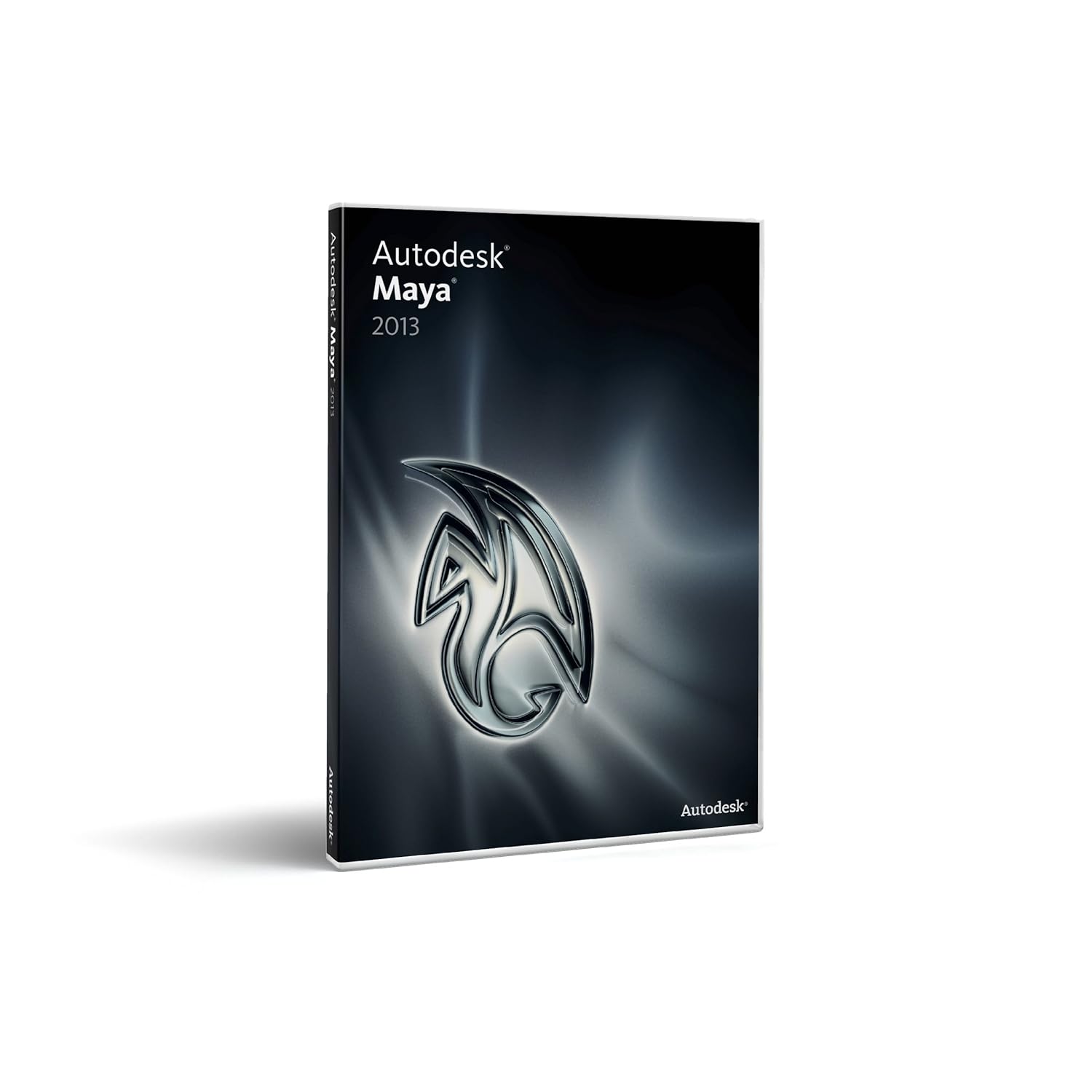 In my current universe, Autodesk Maya holds the title of Queen of All Things CG. Every CG class I've had so far used it, there are tons of tutorials, tons of websites, and tons of examples of it being used to make films. It can be buggy at times, but patches eventually come out and all is the right in the CG world again. I personally love animating in it (more so than animating in Blender), but I currently like modeling in Blender more. This could just be because I've spent more time practicing animating in Maya and more time practicing modeling in Blender. All in all, I think it's an awesome program. If you're a student, check out my post on how to get Maya for free. Because it costs thousands, if you're a hobbyist, I suggest you start with Blender. And if you've been using free programs and want to move up to an industry standard you can get Maya on Amazon and from Autodesk (the $500 difference is a subscription fee that you'd have to get after purchasing the program from Autodesk, so the prices are actually the same). Keep in mind that often there are only small differences between the versions (they do come out every year), so you may want to consider buying an older version to save some money.
3Ds Max
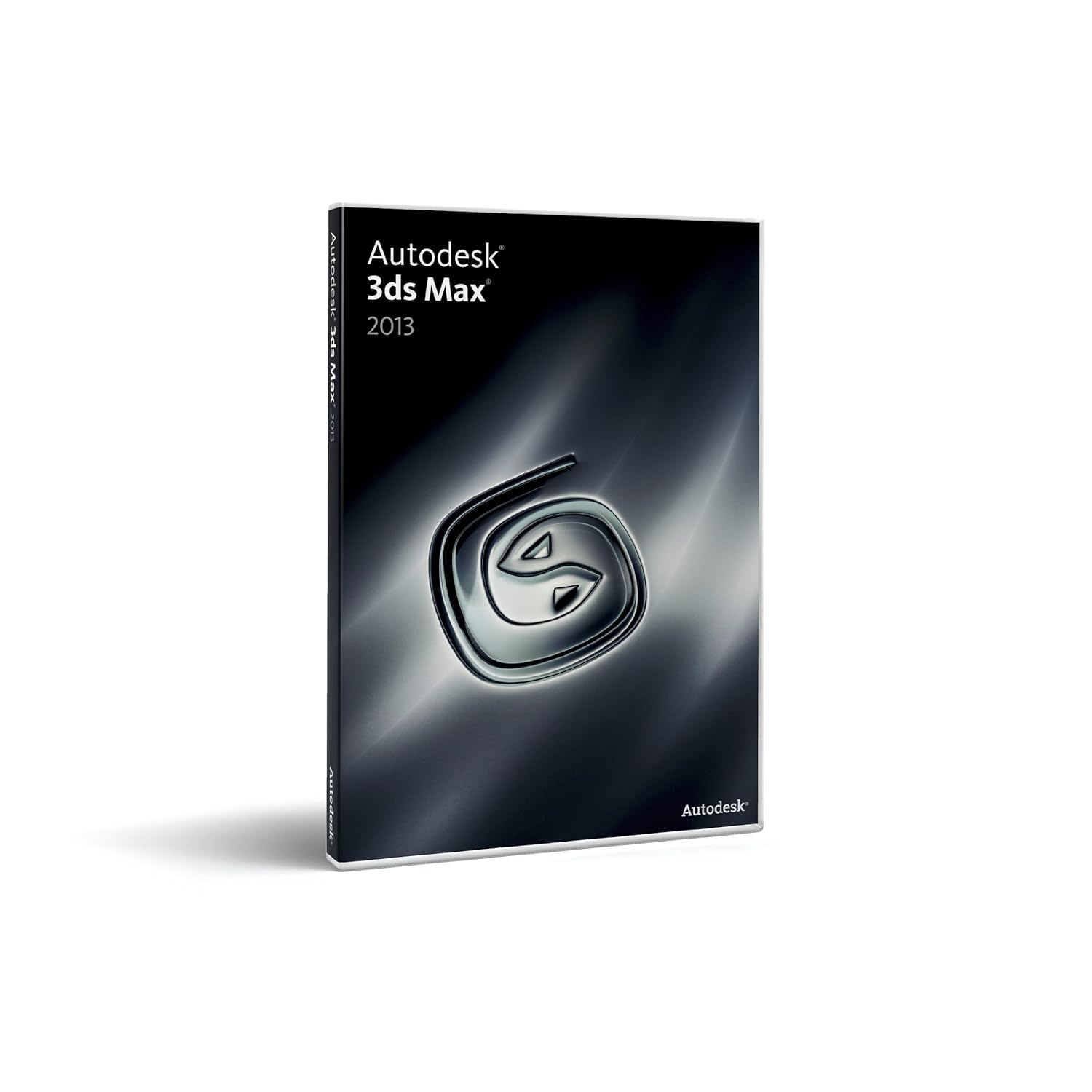 Autodesk 3Ds Max is another great CG program (I've played around with it a bit). I think that the reason people often have trouble deciding between Autodesk Maya and Autodesk 3Ds Max is that they are both all-in-one CG programs from the same company. Why Autodesk has such similar programs, I don't know. I actually truly don't know the difference between them. The way I've always understood it is that Maya is used more often for movies, while 3Ds Max is used more often for games. Of course, there are many exceptions to that. Whatever it's made for, people seem to love 3Ds Max, so I suppose I recommend it if you find something that it does that Maya can't do (or if you're going to focus on games). You can get it on
Amazon and from Autodesk.
Autodesk 3Ds Max is another great CG program (I've played around with it a bit). I think that the reason people often have trouble deciding between Autodesk Maya and Autodesk 3Ds Max is that they are both all-in-one CG programs from the same company. Why Autodesk has such similar programs, I don't know. I actually truly don't know the difference between them. The way I've always understood it is that Maya is used more often for movies, while 3Ds Max is used more often for games. Of course, there are many exceptions to that. Whatever it's made for, people seem to love 3Ds Max, so I suppose I recommend it if you find something that it does that Maya can't do (or if you're going to focus on games). You can get it on
Amazon and from Autodesk.
This is one of the biggest CG programs out there, and it's totally free. I used it for several years before getting into college and being eligible for the free version of Maya. I still use it often now. It may not be "industry standard" but it certainly could be. The Blender Foundation has shown that a number of times with its animated shorts, and many professionals and small studios use it for commercials and other such things. I actually know of a couple of people who left the industry standard programs mentioned above for Blender.It has fur/hair, cloth, fluids, and all those other things you find in the "professional" programs. It also has a lot of tutorials available, including books and DVDs. On top of that, it has a built in video editor, so you don't even need something like Adobe After Effects
to finish your animations off (you need After Effects, or something similar, if you render animations out as individual frames, which is recommended opposed to rendering single video files). You can use the Blender video editor with videos and frames from other sources (so you could use it with Maya or 3Ds Max). You can get Blender here.Mandelbulb 3D
This free 3D fractal program is kind of a digital art program and CG program rolled into one. You interact with 3D fractal objects, and have to render your image out like you do in a CG program, but it's not as functional as a true CG program. You can't import models (though I've heard a few ideas about exporting models), and coloring and lighting abilities are somewhat limited. Also, navigation in 3D isn't that easy. But given that it was made by one person (Jesse of fractalforums.com) and is free, it's pretty awesome. It's functional enough for tons of people to be making beautiful 3D fractal art with it right now, and I'm sure that it'll continue to grow. I've used it quite a lot recently, and am looking forward to working with it more in the coming months. You can get it for Windows here (this is the one I use), and a similar program called Mandelbulber for Linux, Mac, and Windows here.
I've never tried Poser, but I have DAZ Studio. I know that there are some people out there who love those programs, and there are some people out there who don't think renders made with them deserve as much attention as they get. This isn't because the programs are bad, they are actually great, but the problem is that you are using pre-made content. With Maya, Blender, etc. you make your own stuff from start to finish, then render it. With DAZ and Poser, you buy stuff from the companies, arrange and pose it (though you can buy poses too), then render it. You're not relying on your own modeling, texturing, and rigging skills. Some great renders can be made with these programs (I get the DAZ newsletter, and there are always stunning renders making up the ads). However, because it is so simple and user friendly, a lot of people seem to feel they don't need to work with their images as much, creating a lot of bland, obviously CG images out there. Because it is not an all-in-one CG program like Blender or Maya, I think they approach it from a more playful mindset and feel that they don't need to read up on fancy texturing and lighting techniques. Of course, there are many exceptions to this rule (I've come across some great renders on deviantART).
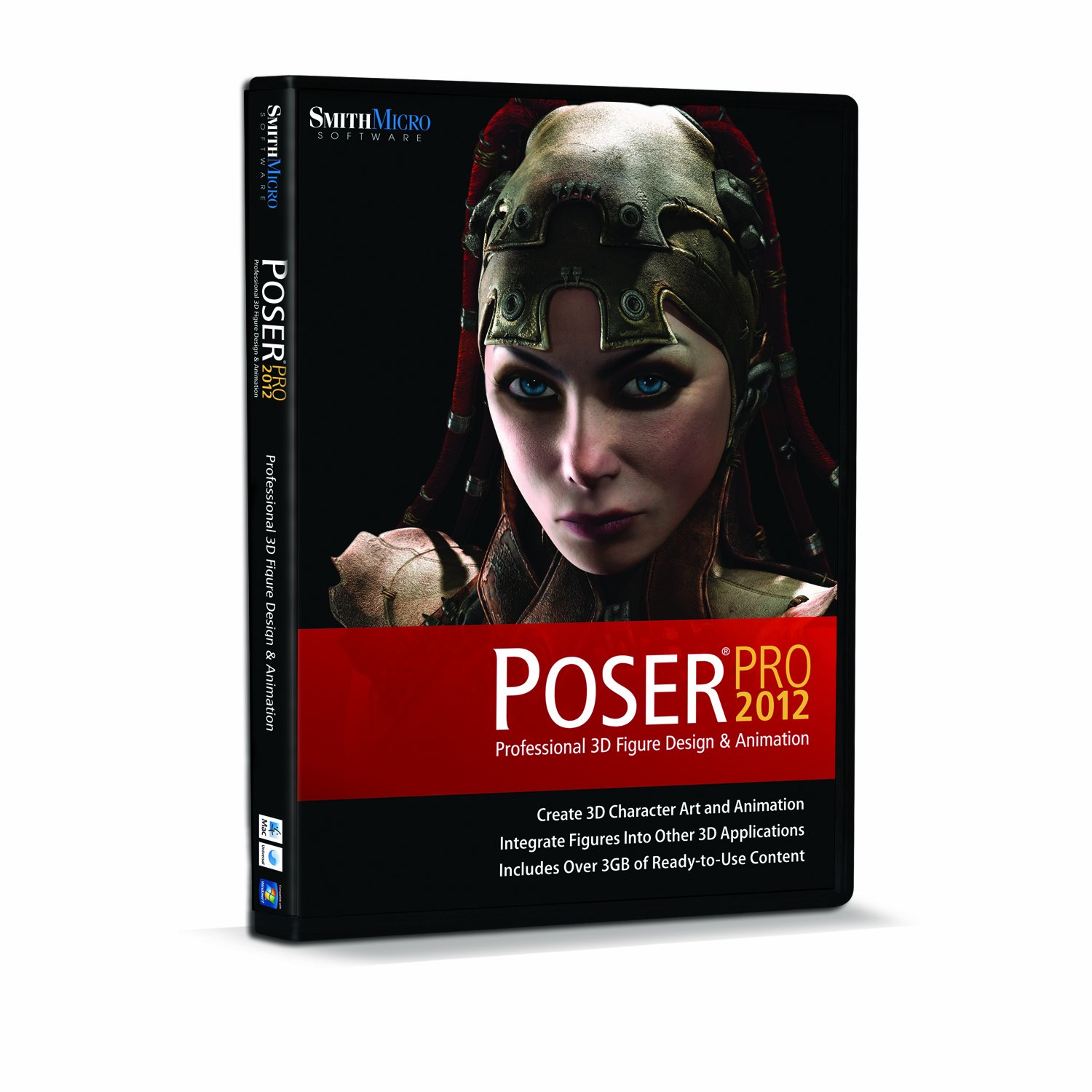 So with all that said, do I recommend these programs or not? The answer is yes and no. Yes, if you are just a hobbyist and don't mind having to pay every time you decide your character needs a new outfit or a new hairstyle (you can find some free things, both from the companies and from users, and you can customize the models in other CG programs). These programs can be a great introduction to CG and can teach you how to effectively pose, set up appealing compositions, and appropriately light your scenes. Also, they can be helpful if you need a drawing reference for a pose but can't find any stock footage (I occasionally use DAZ for this). I do not suggest them if you plan on becoming very serious about CG. They are not used in any visual effects houses, so knowing them isn't much of a plus on your resume. Also, it's much more impressive (I think) to show off something that is wholly your own, made from scratch. Lastly, unless you start customizing the models, you may become constrained by what is available for you to buy. And if you're customizing the models, you might as well take the next step and start making your own things from scratch. You can get DAZ Studio here for free, Poser 9 here
and Poser Pro here
. Be aware that these are not good animation programs (at least DAZ isn't, because I've tried). They are very simplistic when it comes to animation (annoyingly so, I think). Many of the awesome animations you may see on Youtube come from people buying motion capture animations from the companies and applying them to their characters.
So with all that said, do I recommend these programs or not? The answer is yes and no. Yes, if you are just a hobbyist and don't mind having to pay every time you decide your character needs a new outfit or a new hairstyle (you can find some free things, both from the companies and from users, and you can customize the models in other CG programs). These programs can be a great introduction to CG and can teach you how to effectively pose, set up appealing compositions, and appropriately light your scenes. Also, they can be helpful if you need a drawing reference for a pose but can't find any stock footage (I occasionally use DAZ for this). I do not suggest them if you plan on becoming very serious about CG. They are not used in any visual effects houses, so knowing them isn't much of a plus on your resume. Also, it's much more impressive (I think) to show off something that is wholly your own, made from scratch. Lastly, unless you start customizing the models, you may become constrained by what is available for you to buy. And if you're customizing the models, you might as well take the next step and start making your own things from scratch. You can get DAZ Studio here for free, Poser 9 here
and Poser Pro here
. Be aware that these are not good animation programs (at least DAZ isn't, because I've tried). They are very simplistic when it comes to animation (annoyingly so, I think). Many of the awesome animations you may see on Youtube come from people buying motion capture animations from the companies and applying them to their characters.Renderers
 Once you get comfortable with a CG program, you may decide to go find different renderers. This is not at all required to make great CG art, since all the programs tend to ship with awesome renderers already installed. But it never hurts to try some new ones out, because you may find some that you like better. The only ones I've ever used were YafaRay and Luxrender for Blender, but that was back before Cycles came out. I don't know how necessary they are now, because of Cycles, so I'm not going to actually recommend any renderers. However, here are some that I know of that seem worth a look: YafaRay (for Blender), Luxrender (Blender, 3Ds Max, SketchUp C4D, Daz Studio, XSI, and Poser), Aqsis (for many programs I think, though I think you may need the MOSAIC plugin for Blender), Pixar's Renderman (I think it works with most all the big CG programs, and I've seen it on Maya in my college), and NOX (3ds Max, Blender).
So, that's the end of this series of recommendations! I hope it has been helpful. As always, if you agree or disagree with my recommendations, leave me a comment! In my next post, I'm going to cover how to sketch animals. You can see some of my sketches on my Tumblr.
Until next time!
Wednesday, July 18, 2012
Digital Art Program Reccomendations
Welcome to part 2 of this three part art supply/program recommendation series. Last time, I talked about traditional art supplies. Today, I'll cover digital art, including free digital art programs. This should be helpful to new users looking for what digital art program to get, and for more experienced users, looking to see what other cool programs are out there.
Digital Art Supplies
When you're in art college, you'll mainly see Adobe products on your digital art supply lists. They're there for a reason: Adobe has a lot of great products (depending on what you plan to get, you can save some money by buying a bundle pack). However, I know of several other great programs that I'm going to point out. But first, lets talk about the obvious one: Adobe Photoshop.
Photoshop
 I suggest that every artist, digital or not, own some copy of Photoshop. It can help a lot when your scanner sucks the color or contrast from your traditional piece, and you can use it to stitch a piece together if it was large and you had to take photographs of different sections. In general, if you want to make your traditional art digital for any reason, I think you should have Photoshop. And of course, CG artists need something to paint textures in, and Photoshop is great for that. However, not everyone needs what I call the "big" Photoshop (any of the CS series). When I first started out, I had Photoshop Elements 5.0, and I would have kept using it for many years. I only got Photoshop CS5 Extended last year because I needed it for a college class. The main differences are that in the CS version you have the pen tool, finer control over color and value adjustments, easier control over making animations, brushes that are tilt sensitive (for graphics tablet users), better compatibility with 64-bit computers, and some sort of 3D thing that I've never looked into. Now that I have CS5, I only occasionally use Elements (usually just when I need to do something small and quick). However, I never felt that Elements was lacking (though it was difficult to follow a few tutorials because of the differences). So I say, start with Photoshop Elements
 (unless you know you'll need those added features), then move on to the CS series when you're ready (I suggest getting the Extended line, which is what I have).
Corel
 Now, Corel has a variety of programs. I've only ever used Corel Painter Sketch Pad, which came free with my Intuos 4 and is a lot of fun. However, I believe that CorelDRAW(which is a vector program like Illustrator) and Corel Painter (a raster program like Photoshop) are the main Corel programs that artists using (Corel Paintshop actually seems to be photo-editing related, not painting related). Of those two, Corel Painter seems to be the most well loved (or at least the one I hear the most about). Painter is actually in my art program wishlist. I've seen some great art made with it, and never heard any major complaints about Corel, so I suggest both CorelDRAW
and Painter
(there appears to be an Essentials version of Painter available, just like with Photoshop).
Now, Corel has a variety of programs. I've only ever used Corel Painter Sketch Pad, which came free with my Intuos 4 and is a lot of fun. However, I believe that CorelDRAW(which is a vector program like Illustrator) and Corel Painter (a raster program like Photoshop) are the main Corel programs that artists using (Corel Paintshop actually seems to be photo-editing related, not painting related). Of those two, Corel Painter seems to be the most well loved (or at least the one I hear the most about). Painter is actually in my art program wishlist. I've seen some great art made with it, and never heard any major complaints about Corel, so I suggest both CorelDRAW
and Painter
(there appears to be an Essentials version of Painter available, just like with Photoshop).
 Illustrator
I'm not much of a vector artist, but I've seen some stunning vector work. I've used Illustrator enough to be reasonably comfortable with it (it was part of my Advanced Computer Arts college class) and it seems to be pretty awesome. I don't have CorelDRAW, so I can't compare them, but I image they are similar enough. So I also reccomend Illustrator.
 MyPaint
One of my personal favorites, this is a free open-source art program. Because it markets itself as a program that replicates traditional media (like Painter), I like to call it a poor-man's Corel Painter. It looks like it hasn't been updated since November 2011, but I'm fine with my current copy. It lacks a few things that would be nice, like to ability to make a selection and move it, or do simple contrast adjustments (which means that it's good if you have a copy of Photoshop on hand to tweak your work afterwards if necessary). But if you think about it, in traditional media you can't do any of that, so this is just a very realistic digital version of working in traditional media. I especially like to use it when I'm sketching, because it has an infinite canvas (that you can crop down if you like). There are tons of different brushes, for dry media and wet media, and they do a pretty good job of replicating their real-life counterparts. So if you're like me and can't get Corel Painter just yet, I definitely suggest downloading MyPaint.
 GIMP
GIMP
This free program is extremely popular as a Photoshop substitute (I've never used it). There are also tons of tutorials available for it. Personally, I would still suggest you get some version of Photoshop if you know you're going in the digital art direction, because when you become professional you'll probably want to use one of CS series and you'll be familiar with the software (I am not aware of any professionals who use GIMP, though I'm sure some exist). But if you're a traditional artist checking out what all the digital stuff is about, GIMP is a free way to try it out. And if you can't afford any of the Photoshops, then it appears to be a great substitute. You can download it here.
 Paint Tool SAI
I see Paint Tool SAI being used very often, and people really seem to like it. I've actually never used it, simply because I already have Photoshop and MyPaint, and Paint Tool SAI isn't free. It may appear that you can get an English version for free if you simply Google "Paint Tool SAI", but what you're getting isn't the full program, just parts that are edited to give the program a better translation (as clarified here) because the company is Japanese. You can get a trail/buy the program here and get the translation pack here.
Graphics Tablet
 Now, while there are great examples of mouse-drawn digital art, I highly suggest that anyone who plans to even be simply a digital art hobbyist get a graphics tablet. They make the digital art process so much easier. Wacom rules the graphics tablet world, and for a good reason. I started out with a Wacom Graphire 4 without doing too much research into tablets, and loved it until the day I noticed it was dying (it wasn't very pressure sensitive anymore). I started researching other, cheaper brands, but couldn't find a single true competitor. The other brands are cheaper, sure, but they're not as good as a result. Luckily for me, my parents got my a Wacom Intuos 4 for Christmas, and it is wonderful! It's large (I have a dual-monitor setup, so it has to spread its control over a lot of pixels), it's wonderfully sensitive, has different pen nibs to allow it to feel more like a soft brush or firm pen (it came with a generous amount of replacement nibs, but I haven't had to use them yet), and I can use the tilt sensitivity features in Photoshop CS5. However, I am in art college, and plan on taking this tablet with me into the "real world" where I expect to put it to good serious use. If you are just a hobbyist or a beginner, one of the Bamboo versions will probably work fine for you (Bamboo is Wacom's newer version of the Graphire line). If you already have a tablet and are ready to step it up, then the Intuos
is great. The legendary Cintiq
is probably ten times greater (I've seen a few at my college, but never been able to use them). The tablets come in many different sizes, so make sure to measure your desk to make sure it'll fit. And one important tip: make sure to check the size of the tablet's "active area." This is the amount of space of the tablet that you actually have to draw on. A lot of the size of these tablets is inactive surface and button surface area.
Now, while there are great examples of mouse-drawn digital art, I highly suggest that anyone who plans to even be simply a digital art hobbyist get a graphics tablet. They make the digital art process so much easier. Wacom rules the graphics tablet world, and for a good reason. I started out with a Wacom Graphire 4 without doing too much research into tablets, and loved it until the day I noticed it was dying (it wasn't very pressure sensitive anymore). I started researching other, cheaper brands, but couldn't find a single true competitor. The other brands are cheaper, sure, but they're not as good as a result. Luckily for me, my parents got my a Wacom Intuos 4 for Christmas, and it is wonderful! It's large (I have a dual-monitor setup, so it has to spread its control over a lot of pixels), it's wonderfully sensitive, has different pen nibs to allow it to feel more like a soft brush or firm pen (it came with a generous amount of replacement nibs, but I haven't had to use them yet), and I can use the tilt sensitivity features in Photoshop CS5. However, I am in art college, and plan on taking this tablet with me into the "real world" where I expect to put it to good serious use. If you are just a hobbyist or a beginner, one of the Bamboo versions will probably work fine for you (Bamboo is Wacom's newer version of the Graphire line). If you already have a tablet and are ready to step it up, then the Intuos
is great. The legendary Cintiq
is probably ten times greater (I've seen a few at my college, but never been able to use them). The tablets come in many different sizes, so make sure to measure your desk to make sure it'll fit. And one important tip: make sure to check the size of the tablet's "active area." This is the amount of space of the tablet that you actually have to draw on. A lot of the size of these tablets is inactive surface and button surface area.
I hope this was helpful! If you agree or disagree with my recommendations, feel free to leave me a comment!
Until next time!
Digital Art Supplies
When you're in art college, you'll mainly see Adobe products on your digital art supply lists. They're there for a reason: Adobe has a lot of great products (depending on what you plan to get, you can save some money by buying a bundle pack). However, I know of several other great programs that I'm going to point out. But first, lets talk about the obvious one: Adobe Photoshop.
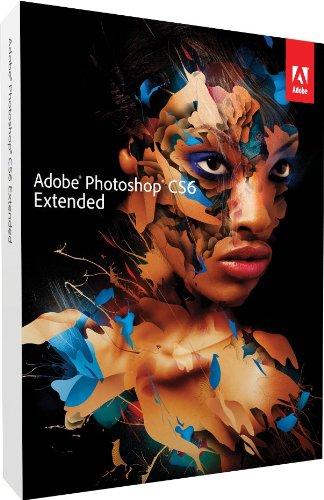 I suggest that every artist, digital or not, own some copy of Photoshop. It can help a lot when your scanner sucks the color or contrast from your traditional piece, and you can use it to stitch a piece together if it was large and you had to take photographs of different sections. In general, if you want to make your traditional art digital for any reason, I think you should have Photoshop. And of course, CG artists need something to paint textures in, and Photoshop is great for that. However, not everyone needs what I call the "big" Photoshop (any of the CS series). When I first started out, I had Photoshop Elements 5.0, and I would have kept using it for many years. I only got Photoshop CS5 Extended last year because I needed it for a college class. The main differences are that in the CS version you have the pen tool, finer control over color and value adjustments, easier control over making animations, brushes that are tilt sensitive (for graphics tablet users), better compatibility with 64-bit computers, and some sort of 3D thing that I've never looked into. Now that I have CS5, I only occasionally use Elements (usually just when I need to do something small and quick). However, I never felt that Elements was lacking (though it was difficult to follow a few tutorials because of the differences). So I say, start with Photoshop Elements
(unless you know you'll need those added features), then move on to the CS series when you're ready (I suggest getting the Extended line, which is what I have).
I suggest that every artist, digital or not, own some copy of Photoshop. It can help a lot when your scanner sucks the color or contrast from your traditional piece, and you can use it to stitch a piece together if it was large and you had to take photographs of different sections. In general, if you want to make your traditional art digital for any reason, I think you should have Photoshop. And of course, CG artists need something to paint textures in, and Photoshop is great for that. However, not everyone needs what I call the "big" Photoshop (any of the CS series). When I first started out, I had Photoshop Elements 5.0, and I would have kept using it for many years. I only got Photoshop CS5 Extended last year because I needed it for a college class. The main differences are that in the CS version you have the pen tool, finer control over color and value adjustments, easier control over making animations, brushes that are tilt sensitive (for graphics tablet users), better compatibility with 64-bit computers, and some sort of 3D thing that I've never looked into. Now that I have CS5, I only occasionally use Elements (usually just when I need to do something small and quick). However, I never felt that Elements was lacking (though it was difficult to follow a few tutorials because of the differences). So I say, start with Photoshop Elements
(unless you know you'll need those added features), then move on to the CS series when you're ready (I suggest getting the Extended line, which is what I have).Corel
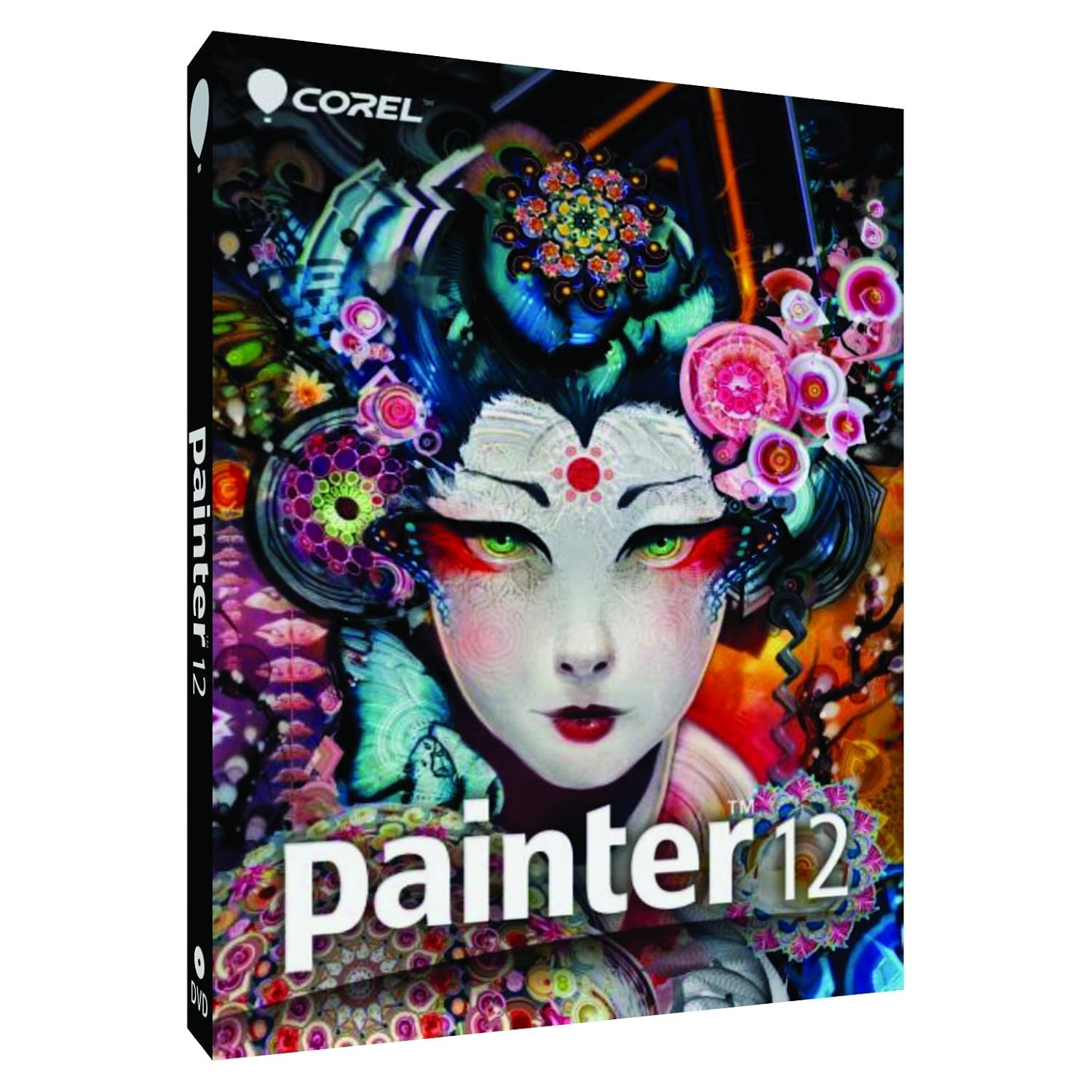 Now, Corel has a variety of programs. I've only ever used Corel Painter Sketch Pad, which came free with my Intuos 4 and is a lot of fun. However, I believe that CorelDRAW(which is a vector program like Illustrator) and Corel Painter (a raster program like Photoshop) are the main Corel programs that artists using (Corel Paintshop actually seems to be photo-editing related, not painting related). Of those two, Corel Painter seems to be the most well loved (or at least the one I hear the most about). Painter is actually in my art program wishlist. I've seen some great art made with it, and never heard any major complaints about Corel, so I suggest both CorelDRAW
and Painter
(there appears to be an Essentials version of Painter available, just like with Photoshop).
Now, Corel has a variety of programs. I've only ever used Corel Painter Sketch Pad, which came free with my Intuos 4 and is a lot of fun. However, I believe that CorelDRAW(which is a vector program like Illustrator) and Corel Painter (a raster program like Photoshop) are the main Corel programs that artists using (Corel Paintshop actually seems to be photo-editing related, not painting related). Of those two, Corel Painter seems to be the most well loved (or at least the one I hear the most about). Painter is actually in my art program wishlist. I've seen some great art made with it, and never heard any major complaints about Corel, so I suggest both CorelDRAW
and Painter
(there appears to be an Essentials version of Painter available, just like with Photoshop). Illustrator
I'm not much of a vector artist, but I've seen some stunning vector work. I've used Illustrator enough to be reasonably comfortable with it (it was part of my Advanced Computer Arts college class) and it seems to be pretty awesome. I don't have CorelDRAW, so I can't compare them, but I image they are similar enough. So I also reccomend Illustrator
.
One of my personal favorites, this is a free open-source art program. Because it markets itself as a program that replicates traditional media (like Painter), I like to call it a poor-man's Corel Painter. It looks like it hasn't been updated since November 2011, but I'm fine with my current copy. It lacks a few things that would be nice, like to ability to make a selection and move it, or do simple contrast adjustments (which means that it's good if you have a copy of Photoshop on hand to tweak your work afterwards if necessary). But if you think about it, in traditional media you can't do any of that, so this is just a very realistic digital version of working in traditional media. I especially like to use it when I'm sketching, because it has an infinite canvas (that you can crop down if you like). There are tons of different brushes, for dry media and wet media, and they do a pretty good job of replicating their real-life counterparts. So if you're like me and can't get Corel Painter just yet, I definitely suggest downloading MyPaint.

This free program is extremely popular as a Photoshop substitute (I've never used it). There are also tons of tutorials available for it. Personally, I would still suggest you get some version of Photoshop if you know you're going in the digital art direction, because when you become professional you'll probably want to use one of CS series and you'll be familiar with the software (I am not aware of any professionals who use GIMP, though I'm sure some exist). But if you're a traditional artist checking out what all the digital stuff is about, GIMP is a free way to try it out. And if you can't afford any of the Photoshops, then it appears to be a great substitute. You can download it here.

I see Paint Tool SAI being used very often, and people really seem to like it. I've actually never used it, simply because I already have Photoshop and MyPaint, and Paint Tool SAI isn't free. It may appear that you can get an English version for free if you simply Google "Paint Tool SAI", but what you're getting isn't the full program, just parts that are edited to give the program a better translation (as clarified here) because the company is Japanese. You can get a trail/buy the program here and get the translation pack here.
Graphics Tablet
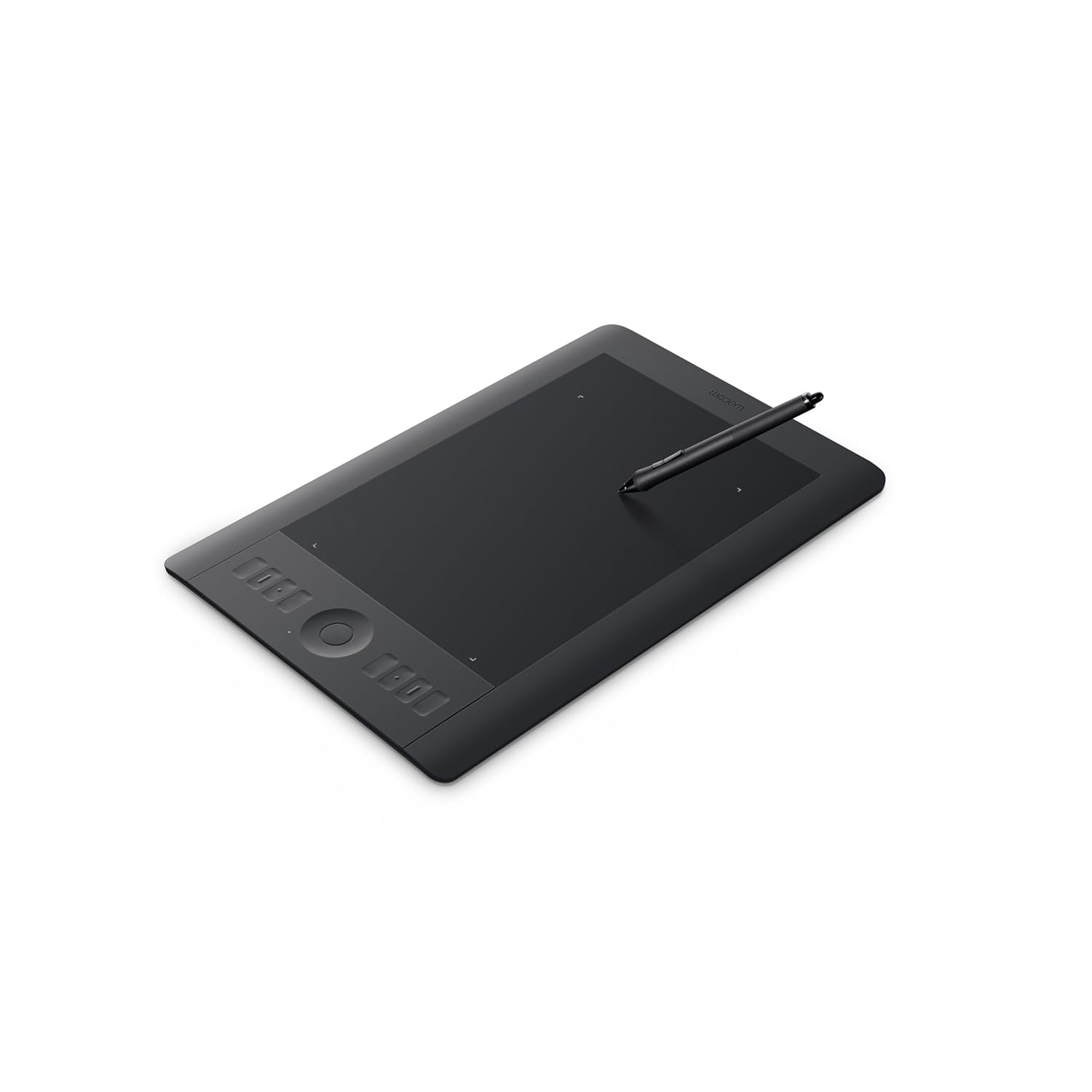 Now, while there are great examples of mouse-drawn digital art, I highly suggest that anyone who plans to even be simply a digital art hobbyist get a graphics tablet. They make the digital art process so much easier. Wacom rules the graphics tablet world, and for a good reason. I started out with a Wacom Graphire 4 without doing too much research into tablets, and loved it until the day I noticed it was dying (it wasn't very pressure sensitive anymore). I started researching other, cheaper brands, but couldn't find a single true competitor. The other brands are cheaper, sure, but they're not as good as a result. Luckily for me, my parents got my a Wacom Intuos 4 for Christmas, and it is wonderful! It's large (I have a dual-monitor setup, so it has to spread its control over a lot of pixels), it's wonderfully sensitive, has different pen nibs to allow it to feel more like a soft brush or firm pen (it came with a generous amount of replacement nibs, but I haven't had to use them yet), and I can use the tilt sensitivity features in Photoshop CS5. However, I am in art college, and plan on taking this tablet with me into the "real world" where I expect to put it to good serious use. If you are just a hobbyist or a beginner, one of the Bamboo versions will probably work fine for you (Bamboo is Wacom's newer version of the Graphire line). If you already have a tablet and are ready to step it up, then the Intuos
is great. The legendary Cintiq
is probably ten times greater (I've seen a few at my college, but never been able to use them). The tablets come in many different sizes, so make sure to measure your desk to make sure it'll fit. And one important tip: make sure to check the size of the tablet's "active area." This is the amount of space of the tablet that you actually have to draw on. A lot of the size of these tablets is inactive surface and button surface area.
Now, while there are great examples of mouse-drawn digital art, I highly suggest that anyone who plans to even be simply a digital art hobbyist get a graphics tablet. They make the digital art process so much easier. Wacom rules the graphics tablet world, and for a good reason. I started out with a Wacom Graphire 4 without doing too much research into tablets, and loved it until the day I noticed it was dying (it wasn't very pressure sensitive anymore). I started researching other, cheaper brands, but couldn't find a single true competitor. The other brands are cheaper, sure, but they're not as good as a result. Luckily for me, my parents got my a Wacom Intuos 4 for Christmas, and it is wonderful! It's large (I have a dual-monitor setup, so it has to spread its control over a lot of pixels), it's wonderfully sensitive, has different pen nibs to allow it to feel more like a soft brush or firm pen (it came with a generous amount of replacement nibs, but I haven't had to use them yet), and I can use the tilt sensitivity features in Photoshop CS5. However, I am in art college, and plan on taking this tablet with me into the "real world" where I expect to put it to good serious use. If you are just a hobbyist or a beginner, one of the Bamboo versions will probably work fine for you (Bamboo is Wacom's newer version of the Graphire line). If you already have a tablet and are ready to step it up, then the Intuos
is great. The legendary Cintiq
is probably ten times greater (I've seen a few at my college, but never been able to use them). The tablets come in many different sizes, so make sure to measure your desk to make sure it'll fit. And one important tip: make sure to check the size of the tablet's "active area." This is the amount of space of the tablet that you actually have to draw on. A lot of the size of these tablets is inactive surface and button surface area.I hope this was helpful! If you agree or disagree with my recommendations, feel free to leave me a comment!
Until next time!